Start with the symptom, not a preset. Fortnite can stutter because DirectX shaders are compiling, a busy fight has made the CPU the limit, storage is streaming data, the GPU is saturated, or the connection is dropping packets. Those causes need different fixes.
01 · TRIAGE
First separate a game hitch from a network problem.
The image pauses or skips while ping stays normal. Check shader compilation, CPU/GPU load, storage and background work.
Players snap or actions arrive late while rendering remains smooth. Check ping, packet loss and the server region.
The whole scene is consistently slow. Find out whether the CPU or GPU is saturated before lowering random settings.
Frame rate, render queue, V-Sync, display refresh and the input device can matter. Ping is a separate measurement.
Epic documents a case where the Fortnite client repeatedly recompiles DirectX shaders. Epic also warns that the first match after clearing the cache can still stutter while shaders compile. Do not call a first cold run a valid before/after result.
02 · 10-MINUTE BASELINE
Create one run you can actually repeat.
- Record the context
Write down the Fortnite build, Windows build, GPU driver, renderer, resolution, FPS cap and whether high-resolution textures are installed.
- Warm the same route
Use the same Creative map or repeatable section. Complete one warm-up run before collecting results, especially after a game or driver update.
- Capture more than average FPS
Record frametime or at least average FPS, 1% low, CPU/GPU utilization, temperature, ping and packet loss for 60–120 seconds.
- Repeat three times
Keep the median run. If the spread between runs is large, the test is not controlled enough to justify a conclusion.
03 · SAFE ORDER
Use the fixes closest to the cause first.
| What you observe | Check first | Then test |
|---|---|---|
| Stutter started after an update | Let shaders warm, verify game files, check the current driver | Same route after one full warm-up |
| GPU sits near full utilization | Lower the settings that cost GPU time or use the appropriate renderer | Stable cap below the new sustainable rate |
| GPU usage is low but one CPU thread is busy | Background apps, view distance, busy end-game scenario, thermals | Same CPU-heavy scene |
| Only online movement breaks | Packet loss, Wi-Fi, server region and service status | Wired test and another server/region where possible |
Epic recommends verifying game files, current graphics drivers, closing background programs, reviewing Windows power mode and testing Fortnite's own Performance Mode when appropriate. Keep the renderer decision tied to your hardware and image-quality goal; Performance Mode is not automatically the best result for every modern PC.
04 · PRODUCT SCOPE
What a Windows optimizer can—and cannot—change.
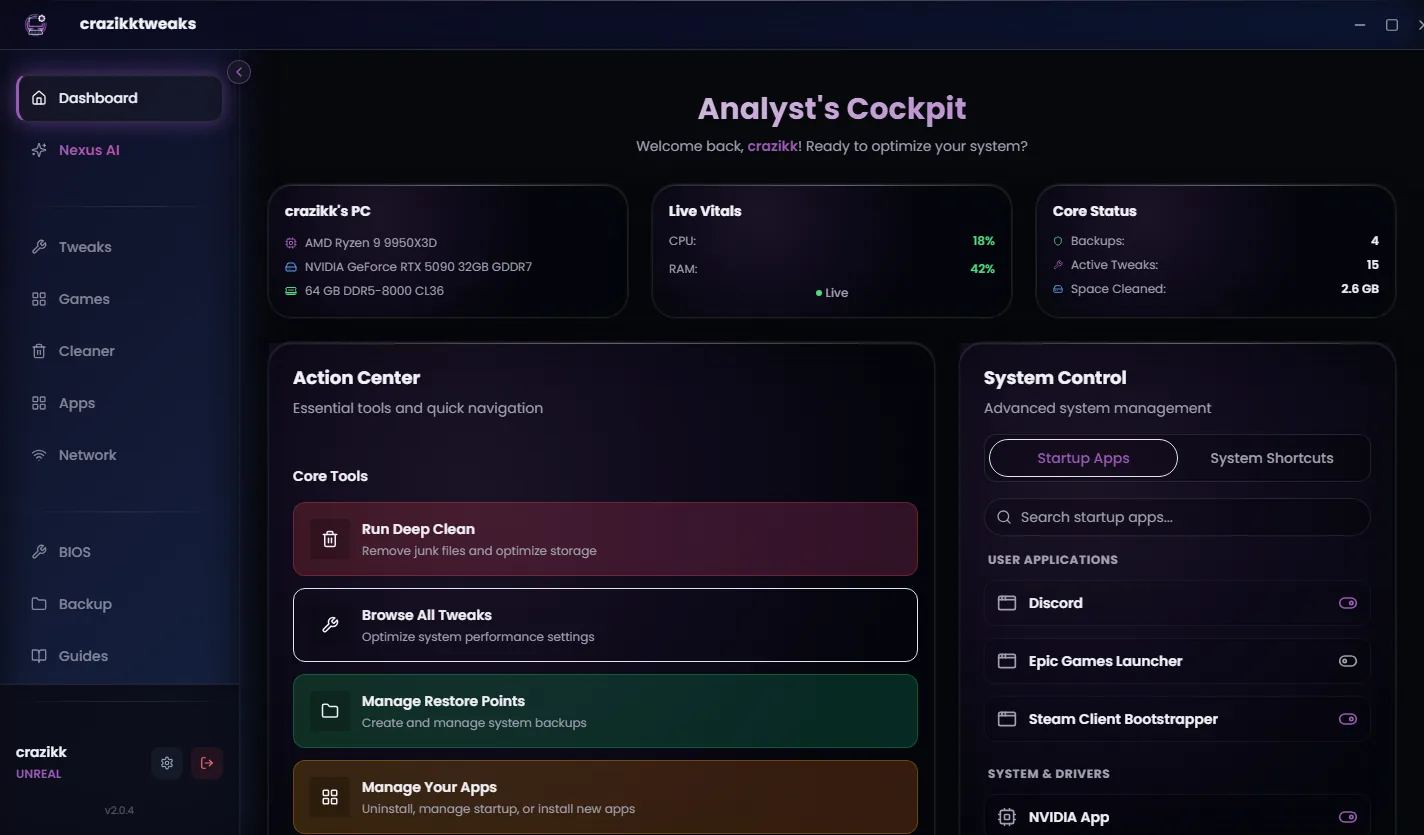
crazikktweaks can help you review supported Windows settings, background load, power behavior and a Fortnite-oriented profile in one workflow. It cannot repair an Epic outage, remove the need to compile new shaders, increase the capability of a saturated GPU, or guarantee the same gain on two different PCs.
Before installing any optimizer, close nonessential overlays and background apps, run the same warmed Fortnite test three times, and save the result. If the run-to-run variance is larger than the claimed improvement, you do not have evidence yet.
Reviewed 24 August 2026
Sources and review notes
Primary sources were checked on 24 August 2026. Product interfaces and platform requirements can change; follow the linked owner documentation for the newest instructions.